NO.167 Hotspot Question
You have a Microsoft 365 ES subscription that uses Microsoft Exchange Online and Teams.
You need to ensure that when a user sends a message containing a cloud attachment, a retention label is applied to the cloud attachment by using an auto-labeling policy.
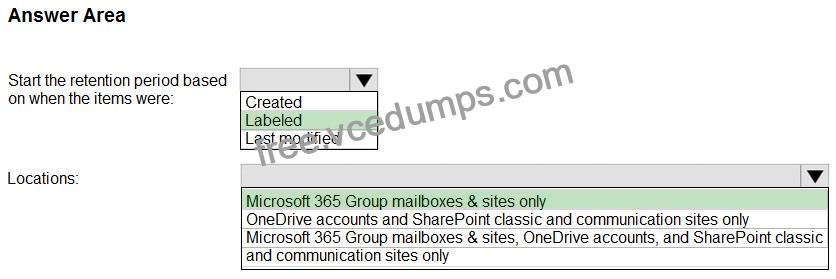
How should you configure the retention label to start the retention period, and to which locations should you apply the auto-labeling policy? To answer, select the appropriate options in the answer area.
NOTE: Each correct selection is worth one point.

Explanation:
Box 1: Labeled
Automatically apply a retention label to retain or delete content
Auto-apply labels to cloud attachments
You might need to use this option if you’re required to capture and retain all copies of files in your tenant that are sent over communications by users, or files that are referenced in Copilot for Microsoft 365. You use this option in conjunction with retention policies for the communication services themselves; Exchange, Teams, Viva Engage, and Copilot for Microsoft 365.
Important
When you select a label to use for auto-applying retention labels for cloud attachments, ensure that the label retention setting Start the retention period based on is When items were labeled.
Box 2: Microsoft 365 Group mailboxes & sites only
When you select a label to use for auto-applying retention labels for cloud attachments, make sure the label retention setting Start the retention period based on is When items were labeled.
When you configure the locations for this option, you can select:
* SharePoint classic and communication sites for shared files stored in SharePoint communication sites, team sites that aren’t connected by Microsoft 365 groups, and classic sites.
*-> Microsoft 365 Groups for shared files that are stored in team sites connected by Microsoft 365 groups.
* OneDrive accounts for shared files stored in users’ OneDrive.
Reference:
https://learn.microsoft.com/en-us/purview/apply-retention-labels-automatically